

How a flow is put together
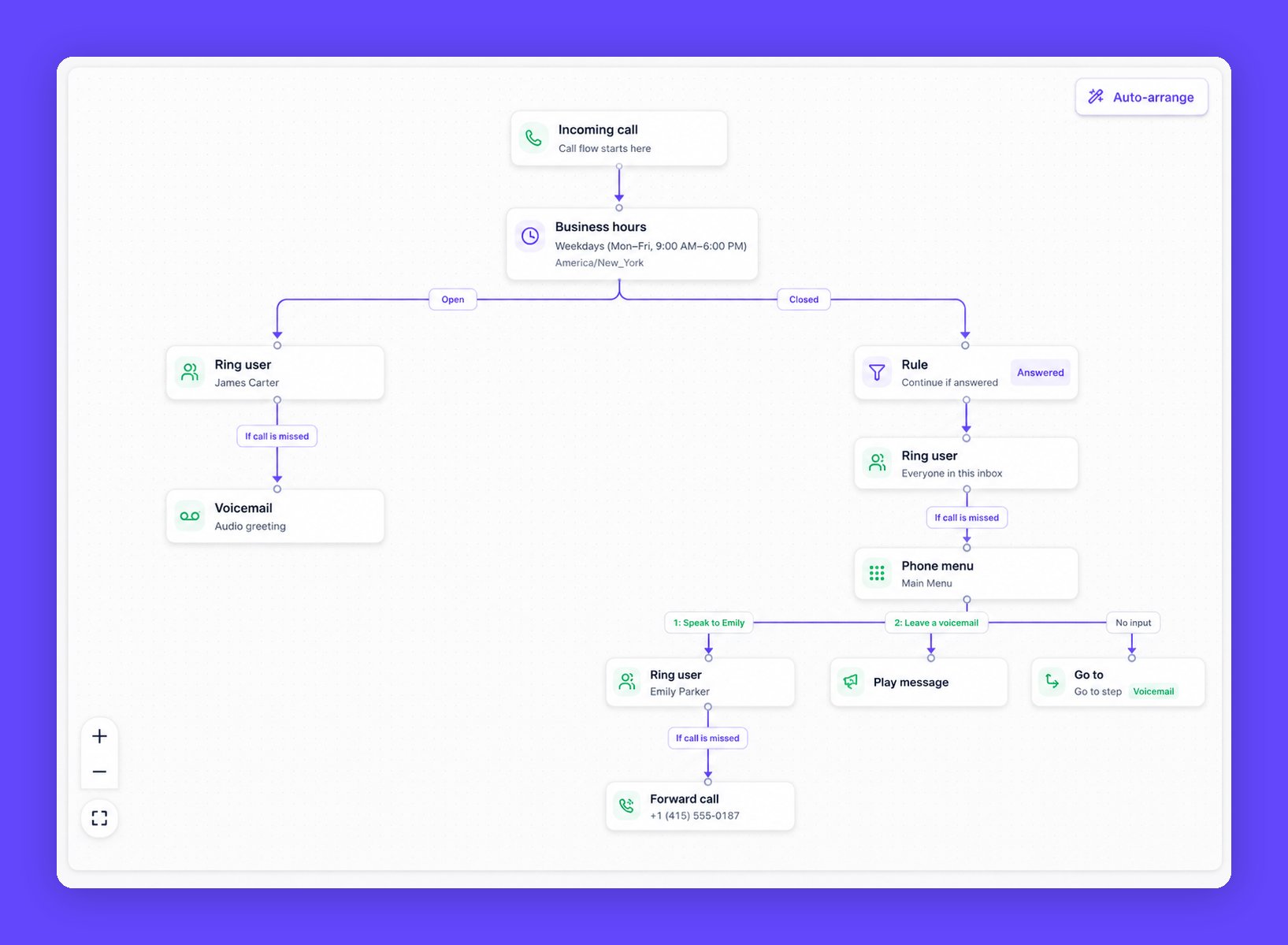
Every flow starts with Incoming call and branches out from there. In the example above:- The call arrives and immediately hits a Business hours step.
- During opening hours it takes the Open branch and rings a user. If nobody picks up, the If call is missed path sends the caller to voicemail.
- Outside hours it takes the Closed branch, rings everyone in the inbox, and if the call is still missed the caller reaches a Phone menu.
- From the menu the caller can press 1 to reach a specific person, press 2 to leave a voicemail, or press nothing at all. Each option leads somewhere you have chosen.
Missed calls
Steps that ring someone have an If call is missed path. Connect it to whatever should happen next, usually voicemail, a phone menu, or another person. A step with nothing on its missed path is the most common reason callers hear silence.Working on the canvas
The Steps panel on the left holds every step you can add, split into Calling steps and Conditions. You do not drag them. Click a step to pick it up, then click where you want it to go, and Dialbird drops it into the flow and connects it up.- Auto-arrange tidies the layout for you.
- The zoom and fit controls in the bottom corner move you around a large flow.
- Undo and Redo are at the top, so a wrong move is never permanent.
Saving, publishing, and going live
A flow has two versions: a draft you can work on safely, and the live version that actually answers calls.- Save as draft (or Update draft) stores your work without touching what callers hear. A draft is labelled at the top so you always know which one you are editing.
- Publish makes your edits live. Dialbird warns you first, because published edits replace the current live flow and start handling calls immediately.
- Discard draft throws the draft away and drops you back on the live version.
Steps
Each step below is one you can drop onto the canvas. Calling steps do something to the call; Conditions steps decide which way it goes.Business hours
Branches the call on whether you are Open or Closed, based on a weekly schedule and a time zone. It has two paths out, Open and Closed, and both must lead somewhere. Click Edit business hours on the step to set the schedule. You can choose:- Every day: the same open and close time seven days a week.
- Weekdays: Monday to Friday only, with the weekend treated as closed.
- Custom hours: a different open and close time for each day.
There is no separate holiday or one-off-date list. If you need Christmas Day closed, set that day with Custom hours, or switch the flow to a temporary arrangement by hand. Business hours are always the weekly pattern above.
Phone menu
Plays a menu to the caller and routes them on the key they press. Each key becomes its own branch out of the step. You can set:- Name: a label for the menu, up to 60 characters, like Main Menu.
- Greeting: what the caller hears before the options. Two ways to do it (see Greetings below): type it as Text for Dialbird to read out, or record or upload Audio. When you type it, Dialbird reads the keypad options out after your wording, so “Press 1 for Sales” happens automatically.
- Keypad options: up to 10 of them. Each option is a digit and a short label. Digits run 1 to 9 and then 0, and each digit can only be used once. Adding an option drops in a voicemail step for it, ready for you to change.
- Timeout: how long Dialbird waits for a keypress, from 1 to 60 seconds (starts at 10). If the caller presses nothing in time, they take the No input branch.
- Max invalid attempts: how many wrong keypresses Dialbird allows, from 1 to 10 (starts at 3). Once the caller hits the limit, the call ends.
Ring user
Rings someone. You choose who under Ring:- A team member: rings one named person in your workspace.
- Everyone in this inbox: rings everyone on this number at once, and the first person to answer takes the call.
Voicemail
Takes a message from the caller. This is where most missed-call paths end up, and it is always the last step: nothing runs after it. The greeting starts as Dialbird’s default greeting. Click Change to record your own, and you get the same two choices as everywhere else: Text for Dialbird to read out, or Audio to record or upload (see Greetings). Use default greeting puts the standard one back.- Max recording length: how long a caller can talk, from 10 seconds to 5 minutes (starts at 2 minutes).
- Transcribe voicemails: on by default. Dialbird turns each recording into text so you can read it instead of listening. Switch it off if you would rather not.
Play message
Plays a spoken message to the caller, then carries on to the next step. It is useful for opening-hours announcements, or for telling a caller what is about to happen before it happens. You set the message as Text (up to 500 characters, which Dialbird reads out) or as Audio you record or upload (see Greetings). If you leave nothing connected after it, the message plays and the call ends, which is a perfectly normal way to finish, for example “Sorry, we’re closed” with no further steps.Forward call
Sends the call on to an outside number, such as a mobile or an answering service. Type the number into Phone number, with the country picker set to your workspace country by default. The call rings that number and then leaves Dialbird, so this is always the last step on its path. In the example, a missed call to Emily forwards to+1 (415) 555-0187.
Needs checking: confirm whether forwarded legs are billed as outbound calls.
Hold music
There is no Hold music step in the call flow builder. The steps you can add are Incoming call, Phone menu, Ring user, Voicemail, Play message, Forward call, Go to, Business hours, and Rule. Music on hold happens during a live call, not as a routing step. See Call hold.Needs checking: describe what hold music does and where it is configured.
Rule
Continues down its one path only when a condition is met. If the condition is not met, the call stops there. Pick the Condition type:- Answered or missed: continue only if the previous call step was Answered or Missed. You choose which, and set the Ring duration it waits on, from 5 to 60 seconds (starts at 30). Best placed straight after a Forward call step, so you can carry on only when that forward was answered (or only when it was missed).
- Business hours: continue only when the call arrives Open or Closed, whichever you choose.
Go to
Jumps to another step already in the flow, instead of building the same branch twice. In the example, the menu’s No input branch uses Go to, pointing at the voicemail step. You set its destination by picking an existing step. There are a few sensible limits. Go to cannot point at the Incoming call start or at a Business hours step, and it cannot create an endless loop. The one loop it does allow is sending a phone menu’s No input back to the same menu to repeat it, and even that is capped at 3 repeats so callers are never stuck.Greetings: text or audio
Phone menu, Voicemail, and Play message all offer the same two ways to give the caller something to hear.- Text: type the wording and pick a voice, then click Generate audio. Dialbird shows you exactly what it will say and lets you play it back. The first voice you pick becomes the flow’s default, so the rest of your steps sound the same. Editing the wording or changing the voice clears the old clip so it stays in step.
- Audio: record a greeting with your microphone, or upload a file (MP3 or WAV, up to 10 MB). You can play it back, re-record, or replace it before saving.